A design can look perfect on screen and still fail when it reaches the printer. That is because a visually finished file and a production-ready file are not the same thing.
A visually finished design means the layout, typography, images, colors, and content have been approved. A print-ready file goes one step further. It has been prepared according to the technical requirements needed for accurate printing, trimming, folding, and finishing.
This is where a print ready files checklist becomes important.
Before a file goes into production, details such as bleed, trim size, safe zones, color mode, image resolution, fonts, dielines, and export settings need to be checked. Even a small setup error can create visible problems in the finished piece. A background that stops exactly at the trim line may leave a thin white edge after cutting. A low-resolution image may look acceptable on a laptop but appear pixelated at its final print size.
Professional design teams usually handle this through a pre-flight check. It is a final technical review performed after the creative work is approved but before files are released for production.
The exact requirements can vary depending on the printer, printing process, material, and type of project. A business card, brochure, packaging box, and large-format display will not necessarily use identical specifications.
That is why pre-flight is not simply about exporting a PDF and sending it to the vendor. It is about confirming that the file matches the actual production requirements.
Following a consistent print ready files checklist helps catch common print production mistakes before they become expensive physical mistakes.
Bleed, trim, and safe zones are basic print-production concepts, but errors around them are still among the most common reasons files need to be corrected before printing.
Mistake #1 is not extending backgrounds or images beyond the trim line. Printing and cutting have small production tolerances, so a background that ends exactly at the finished edge can leave an unintended white strip after trimming.
Bleed prevents this by extending artwork beyond the final trim size. The required bleed amount varies by printer and product, so always follow the vendor's specification rather than assuming one universal measurement.
Mistake #2 is placing important text, logos, page numbers, or other critical elements too close to the trim edge. These elements should remain within an appropriate safe zone. Otherwise, normal cutting variation can make the layout feel uneven or, in more serious cases, cut into important content.
Mistake #3 is confusing the trim size with the bleed size.
The trim size is the final physical size of the printed piece after cutting. Bleed extends beyond that finished size and is removed during production. Your document setup and final export need to account for both correctly.
Bleed and crop marks are also different. Bleed is additional artwork outside the trim area, while crop marks indicate where the piece should be trimmed. Some printers request crop marks; others prefer files without them because their production workflow adds marks separately.
A reliable print ready files checklist should therefore verify the finished dimensions, required bleed, safe zone, and the printer's requirements for bleed and crop marks before export.
Getting these fundamentals right prevents avoidable white edges, awkward margins, and incorrectly trimmed content.
Color is one of the areas where what you see on screen can differ most noticeably from what comes off the press.
Mistake #4 is designing entirely in RGB and assuming those colors will reproduce exactly in print. RGB creates color using light and is primarily used for screens, while conventional process printing generally uses CMYK inks.
This difference makes CMYK vs RGB printing important during file preparation. Some bright blues, greens, oranges, and other highly saturated RGB colors cannot be reproduced identically within a standard CMYK gamut. Simply converting the file at the last moment can therefore produce unexpected changes.
Mistake #5 is mishandling spot colors such as Pantone colors. A brand may specify a spot color for consistent reproduction, but whether it should remain as a spot ink or be converted to process values depends on the printing method, budget, substrate, and printer specifications.
Converting a spot color without checking the expected result can affect brand color accuracy.
Mistake #6 is ignoring ICC color profiles. Profiles help define how color values should be interpreted across devices and production conditions. Using the wrong profile—or converting without understanding the printer's workflow—can contribute to differences between the screen proof and final output.
For important brand materials, color should therefore be evaluated within the intended print conditions rather than judged only from a monitor.
A print ready files checklist should confirm the required color mode, appropriate ICC profile, treatment of spot colors, and the printer's preferred export settings before release.
Good color preparation cannot make every screen and printed piece look identical. It can, however, make the result more predictable and prevent avoidable print production mistakes caused by incorrect color setup.
An image can look sharp on a screen and still appear soft, blurry, or pixelated once printed. This usually happens because screen viewing and print production have different image-resolution requirements.
Mistake #7 is using web-resolution images for printed materials. Images downloaded from websites, social media, or online presentations are often optimized for screen use rather than high-quality printing. A commonly referenced screen resolution is 72 PPI, but the more important factor is the image's effective resolution at its final printed size.
For many commercial print applications, around 300 PPI at final size is a common target, although the actual requirement depends on the printing process, viewing distance, and printer specifications. Large-format graphics viewed from several metres away, for example, may not require the same resolution as a brochure held in someone's hand.
Mistake #8 is taking a small image and simply scaling it up in the layout. Increasing its dimensions does not create the missing image detail. Instead, its effective resolution decreases as the image becomes larger, which can make pixelation and softness more visible in print.
The better approach is to source the original high-resolution photograph, illustration, or product image at a size appropriate for its intended use.
This is particularly important for photography-heavy brochures, catalogues, packaging, posters, and other materials where image quality directly affects the perceived quality of the brand.
As part of a print ready files checklist, every raster image should be checked at its final placed size rather than judged only by how it appears on screen.
Checking effective resolution before export is one of the simplest ways to avoid preventable print production mistakes. If an image does not meet the printer's requirements, replace it with a higher-resolution original instead of relying on enlargement to solve the problem.
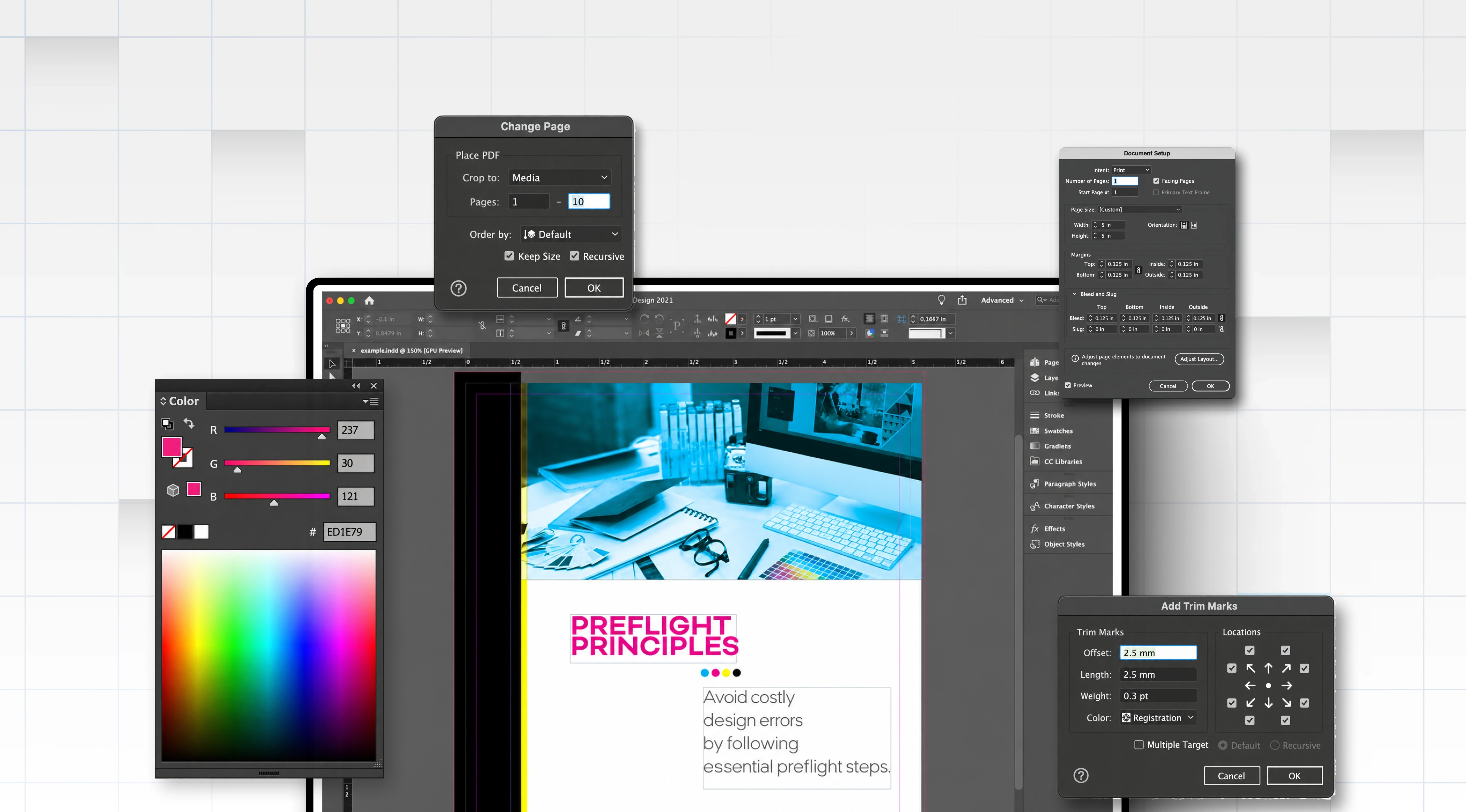
For packaging, folders, sleeves, labels, brochures, and other folded or die-cut pieces, preparing artwork is not only about designing a flat page. The layout needs to work with the physical structure that will eventually be cut, folded, scored, glued, or assembled.
Mistake #9 is treating the dieline as a visual guide rather than a production framework.
A dieline indicates important structural information such as cut lines, fold lines, score lines, glue areas, perforations, and other production boundaries. If the artwork does not account for these areas, elements that look correctly positioned in the flat design can become misaligned, hidden, or divided after production.
For example, placing a logo or important sentence directly across a fold may cause part of it to disappear around an edge. Similarly, placing important artwork inside a glue flap or too close to a die-cut opening can compromise the finished design.
Before designing, obtain the final dieline from the printer or packaging supplier whenever possible. Do not recreate structural measurements from a visual reference if an approved production template is available.
Keep dielines on clearly labelled layers and follow the vendor's instructions about spot colors, overprinting, and whether production lines should remain visible in the supplied file.
It is also useful to create a physical mock-up for complex folded pieces. Even a simple paper prototype can reveal orientation problems that are difficult to notice while viewing a flat layout.
A print ready files checklist should verify every critical element against the cut, fold, score, and safe areas before export.
Structural errors can be particularly costly because they may not become obvious until a piece is physically produced. Checking the dieline early helps ensure the final printed object works as intended, not just the artwork on screen.
CMYK matches the ink-based color process printers use, while RGB is built for light-based screens, so RGB files can print with shifted or dull colors.
A print-ready PDF is typically exported to a standard like PDF/X-1a, with fonts embedded, images at full resolution, and bleed and crop marks included.